
Exam Builder
How to prepare question papers?
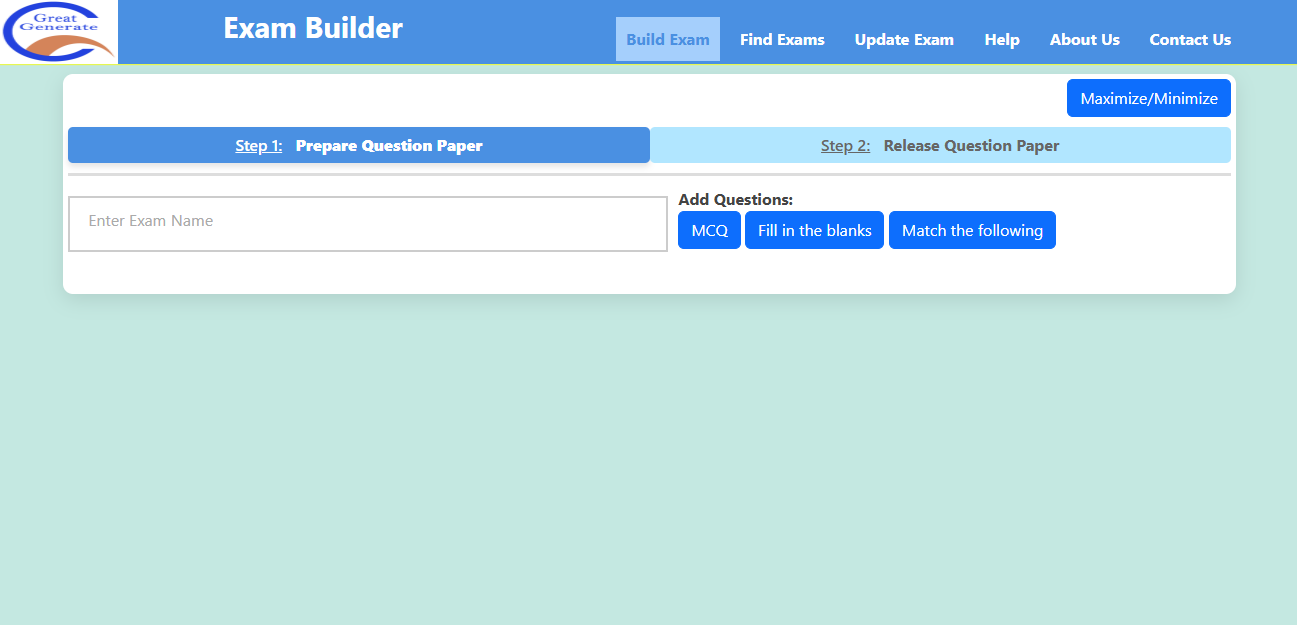
- Go to Exam Builder.
- This is the Exam Builder landing page.
- You can start prepare question paper from this page.
- You can see the title filed to set the exam name.
- You can find question types like:
- MCQ (Multiple Chooice Questions).
- Fill in the blanks.
- Match the following.
- Click on those types to add questions.
How to set question paper title/name?
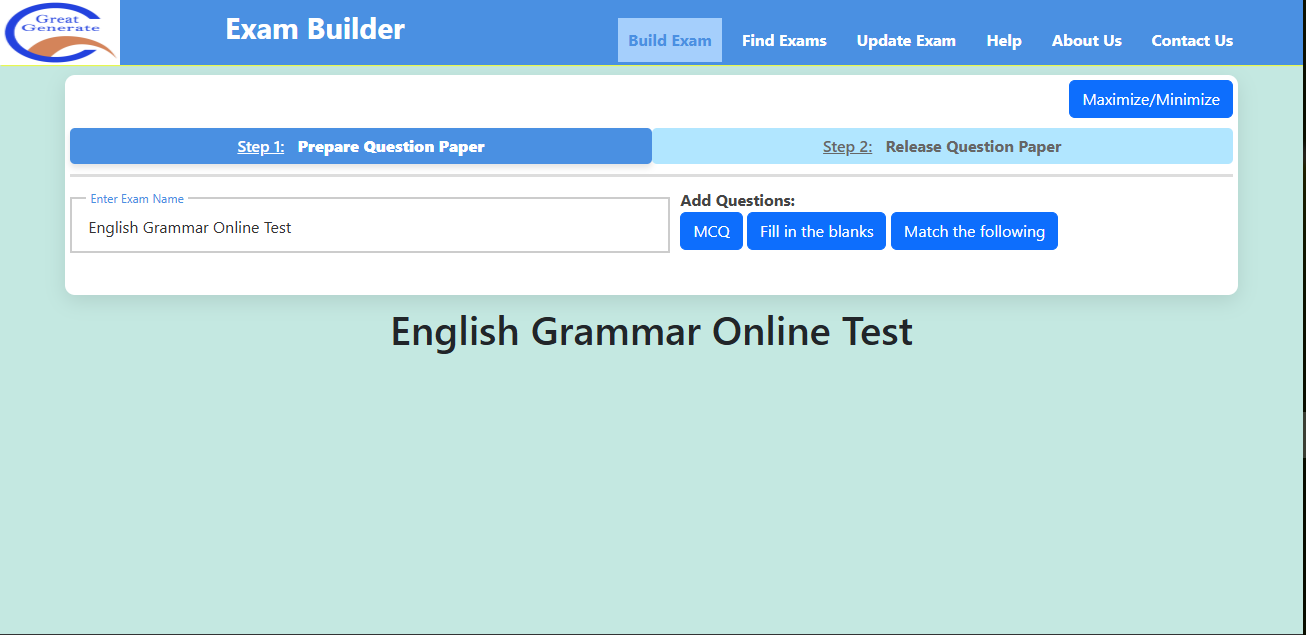
- Enter the exam title/name in the text field.
- The entered exam name will be displayed.
How to add MCQ (Multiple Choose Questions) ?
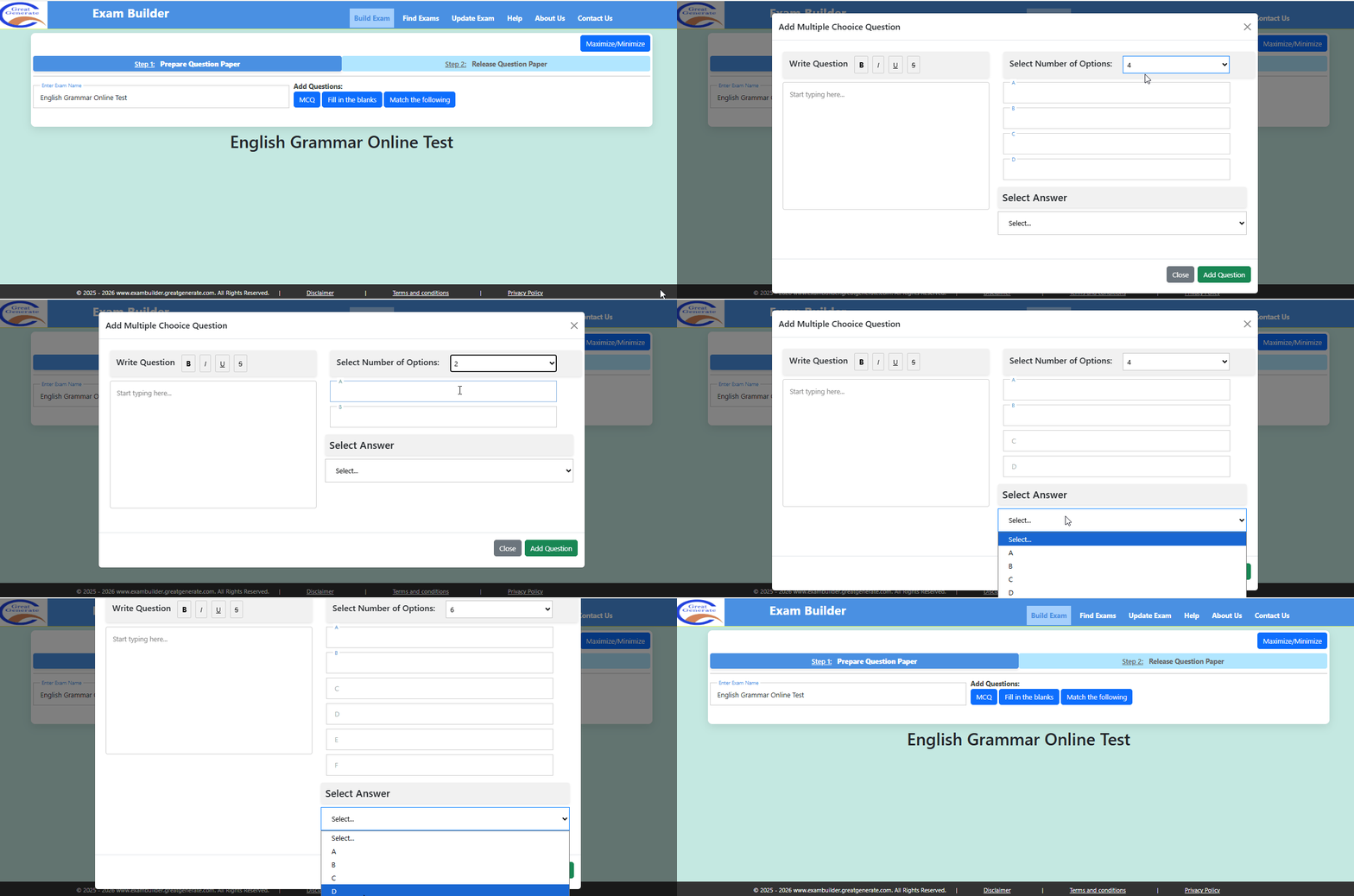
- Click on MCQ button.
- You can see a popup MCQ Panel.
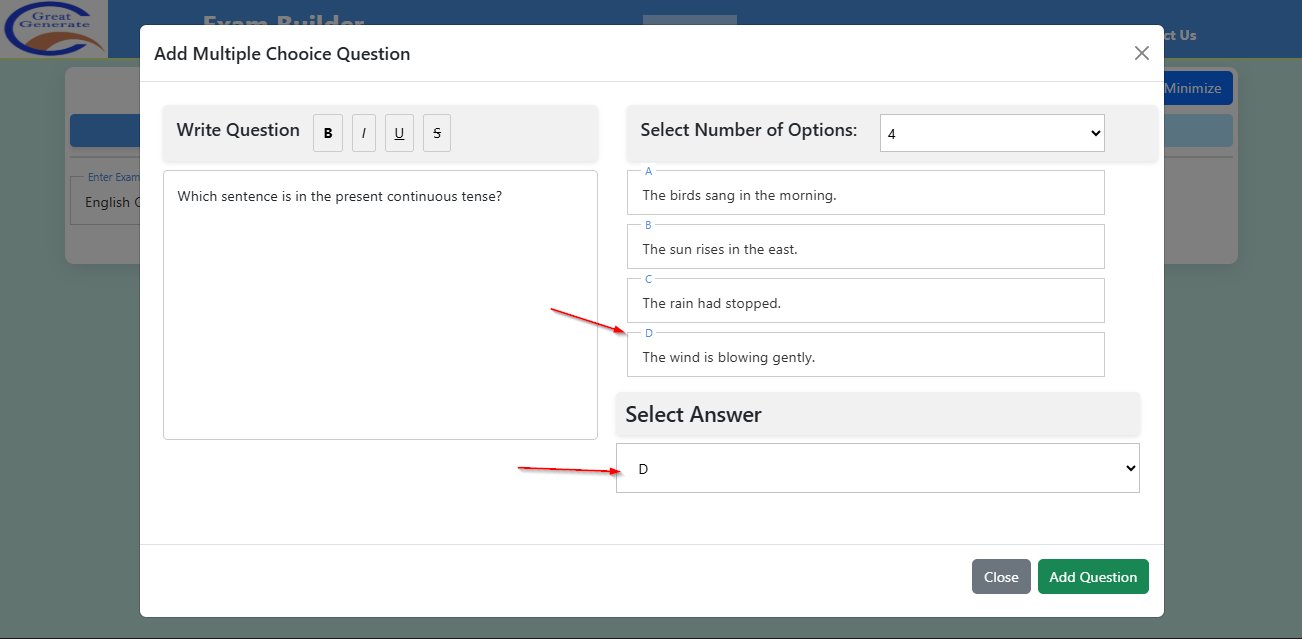
- In this MCQ panel, enter the question and its options.
- In the "Select Answer" dropdown, select correct answer option. Let's say if you have entered 4 options for the question and 4th (D) options is correct then select the D from the "Select answer" dropdown.
- CLick on "Add Question" button.
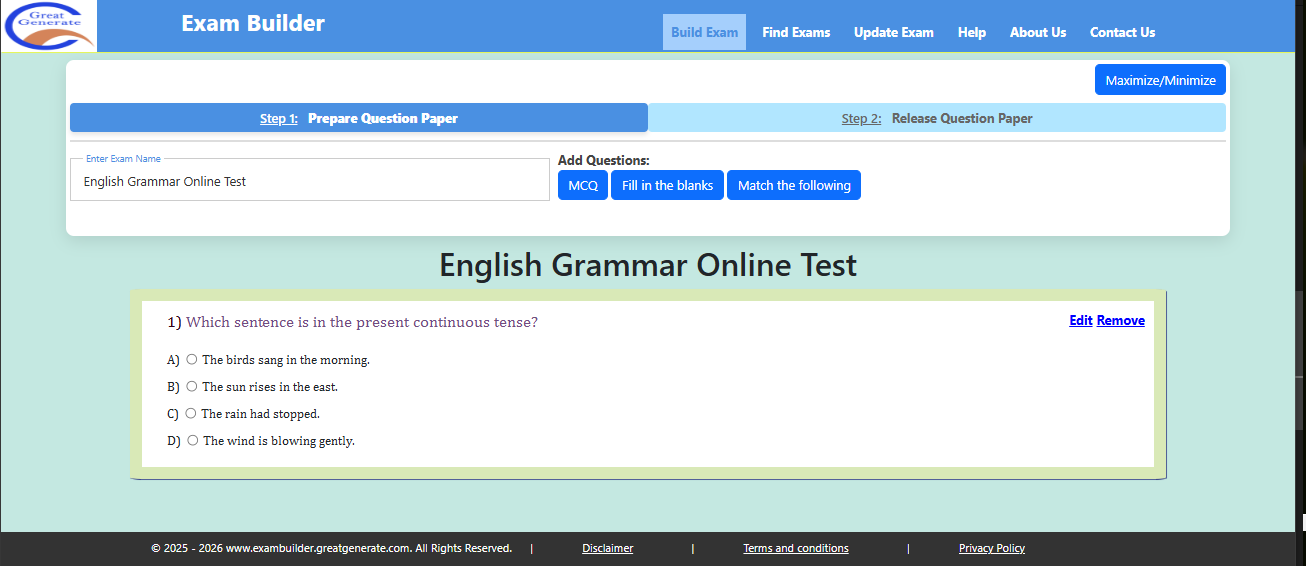
- The question will be added in the question paper. You can also find "Edit" and "Remove" buttons on the added question.
How to add fill in the blank questions?
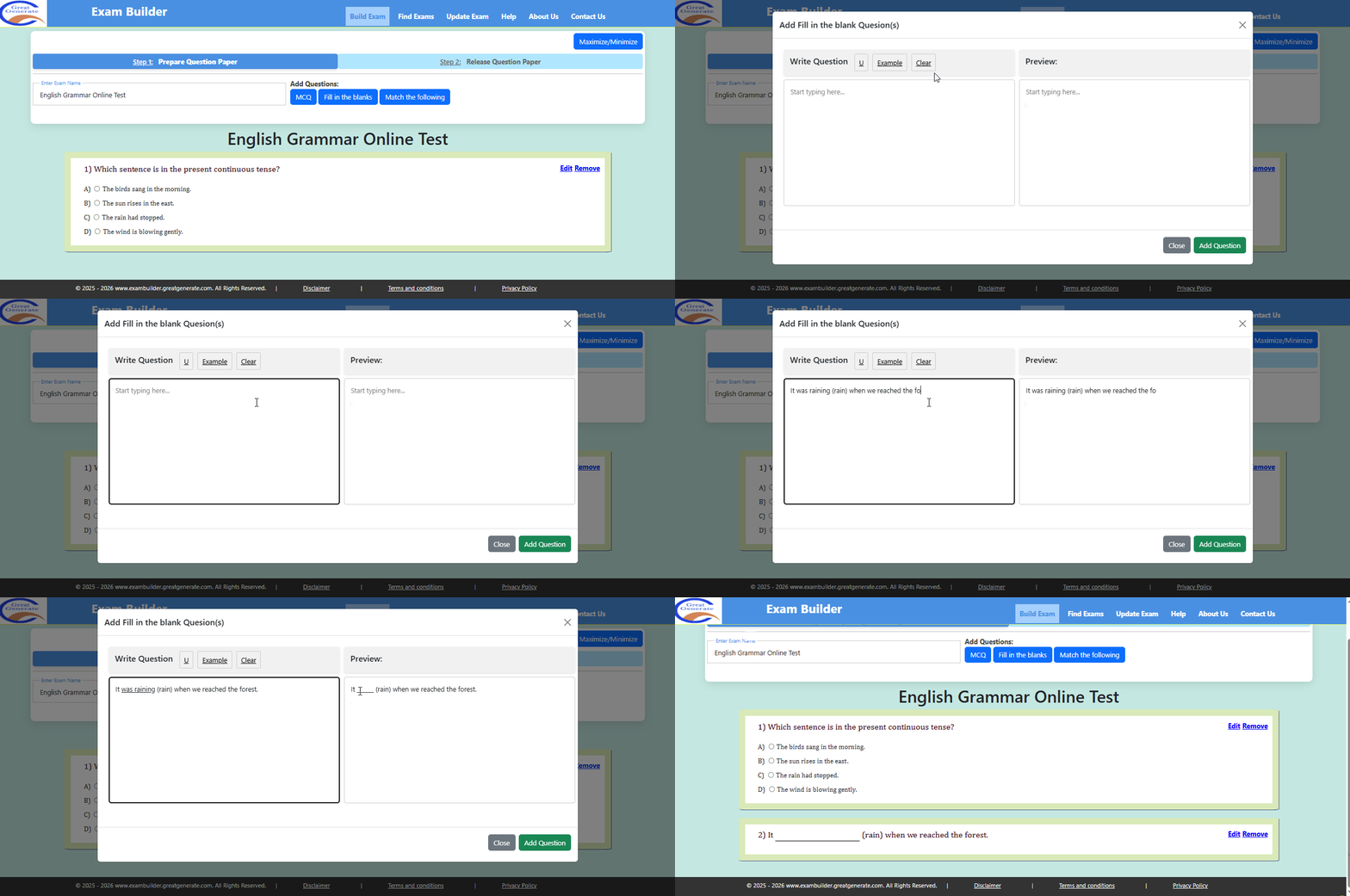
- Click on fill in the blanks button.
- You can see fill in the blanks popup panel.
- By default, it will show an example question with instruction. You can clear it and add the question.
- After adding the question, just select the words which should be blank to fill the answer.
- Note: the selected under-line word is the answer for that blank.
- Click on Add Question button to add this to the question paper.
How to add match the following questions?
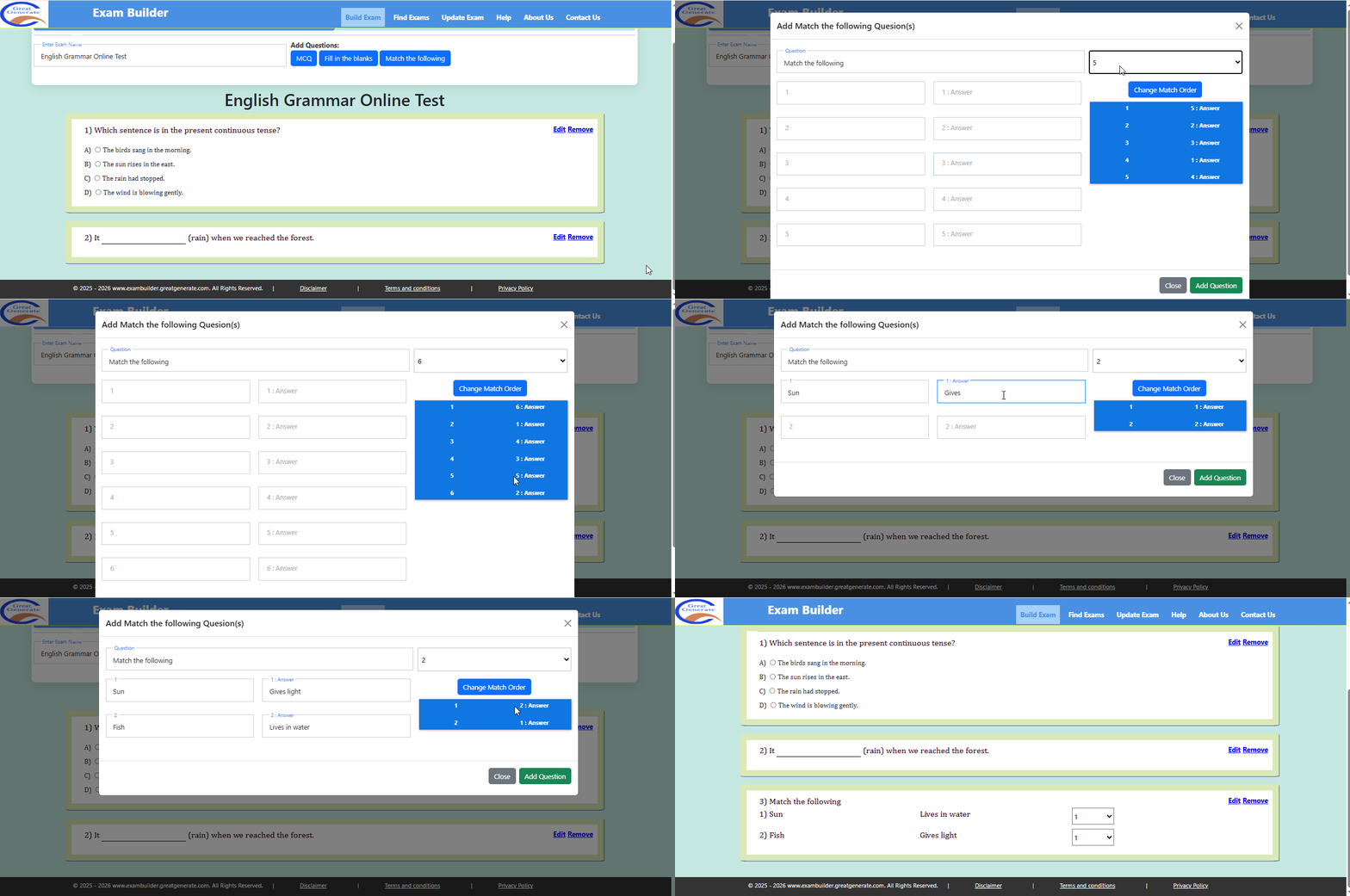
- Click on match the following button.
- You can see match the following popup panel.
- Select number of options upto 6.
- Add question and its answer side by side in the given fields.
- Once all are added, click on "Change Match Order" button to set different order.
- Click on Add Question button to add this to the question paper.
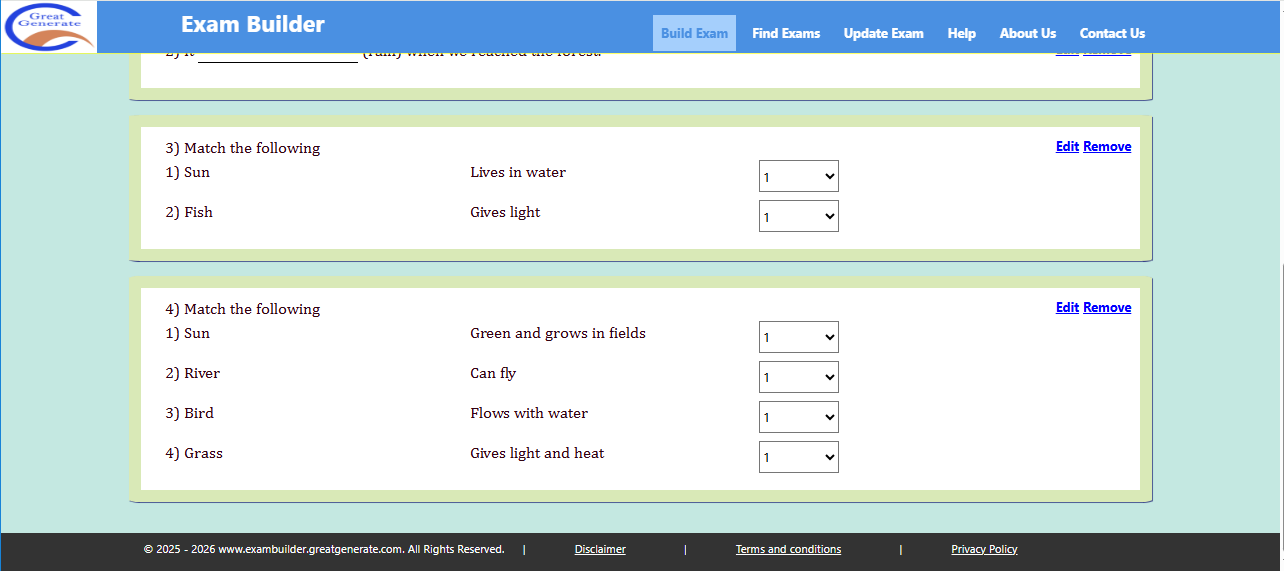
- The match the following questions will be added in the question paper. You can also find "Edit" and "Remove" buttons on the added question.
How to save and share the question paper links?
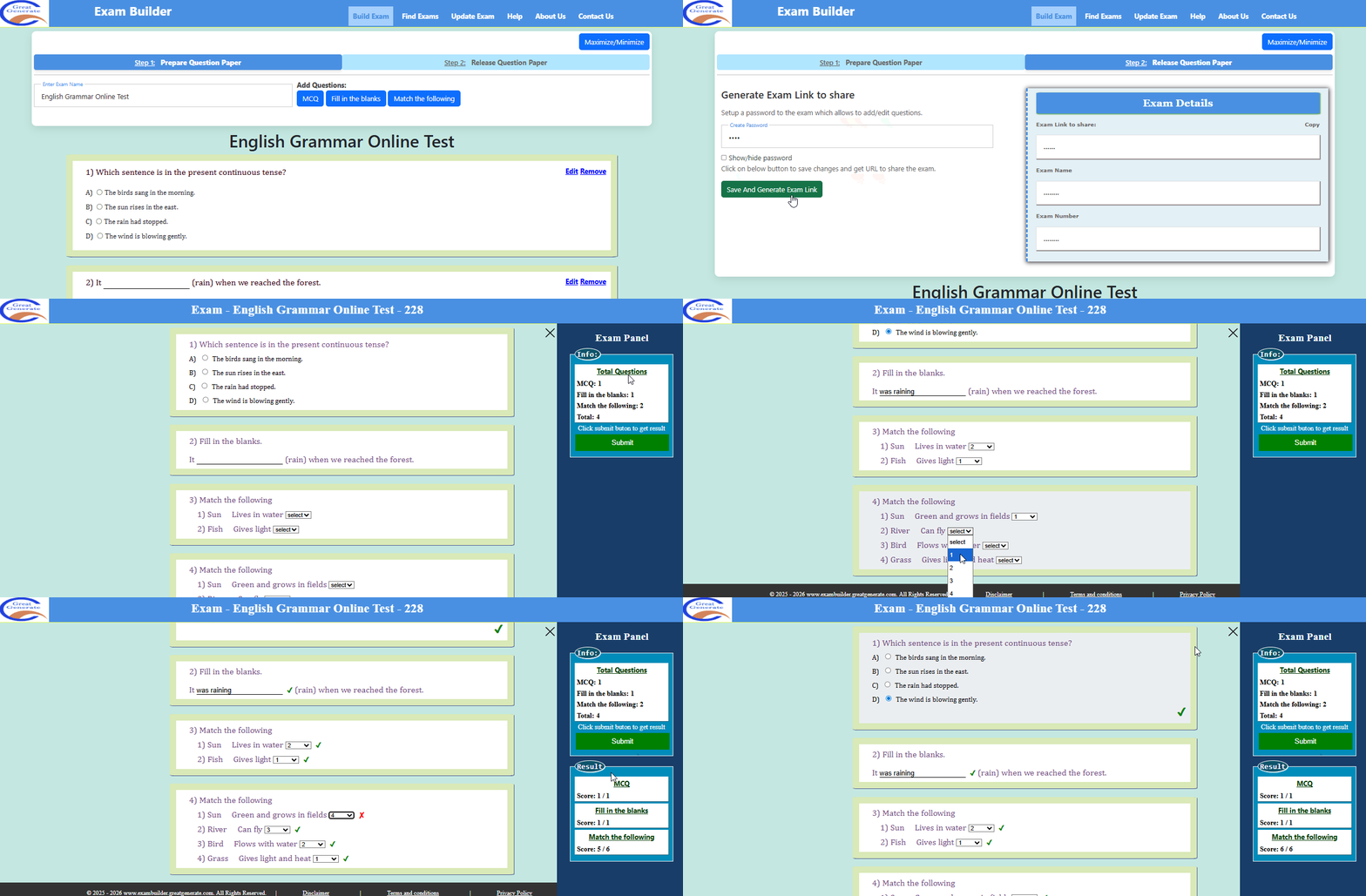
- Once all quesitons are added. Now, it is time to save and share the link to participants to wrtie the exam.
- Click on the "Step 2: Release Question Paper" tab.
- Set a password.
- Click on "Save And Generate Exam Link".
- Under "Exam Details" you can find the generated exam link and its number.
- Now you can share this generated link to the participants.